Entertainment player
Saimo TV: A Personal IPTV Player Across Your Screens
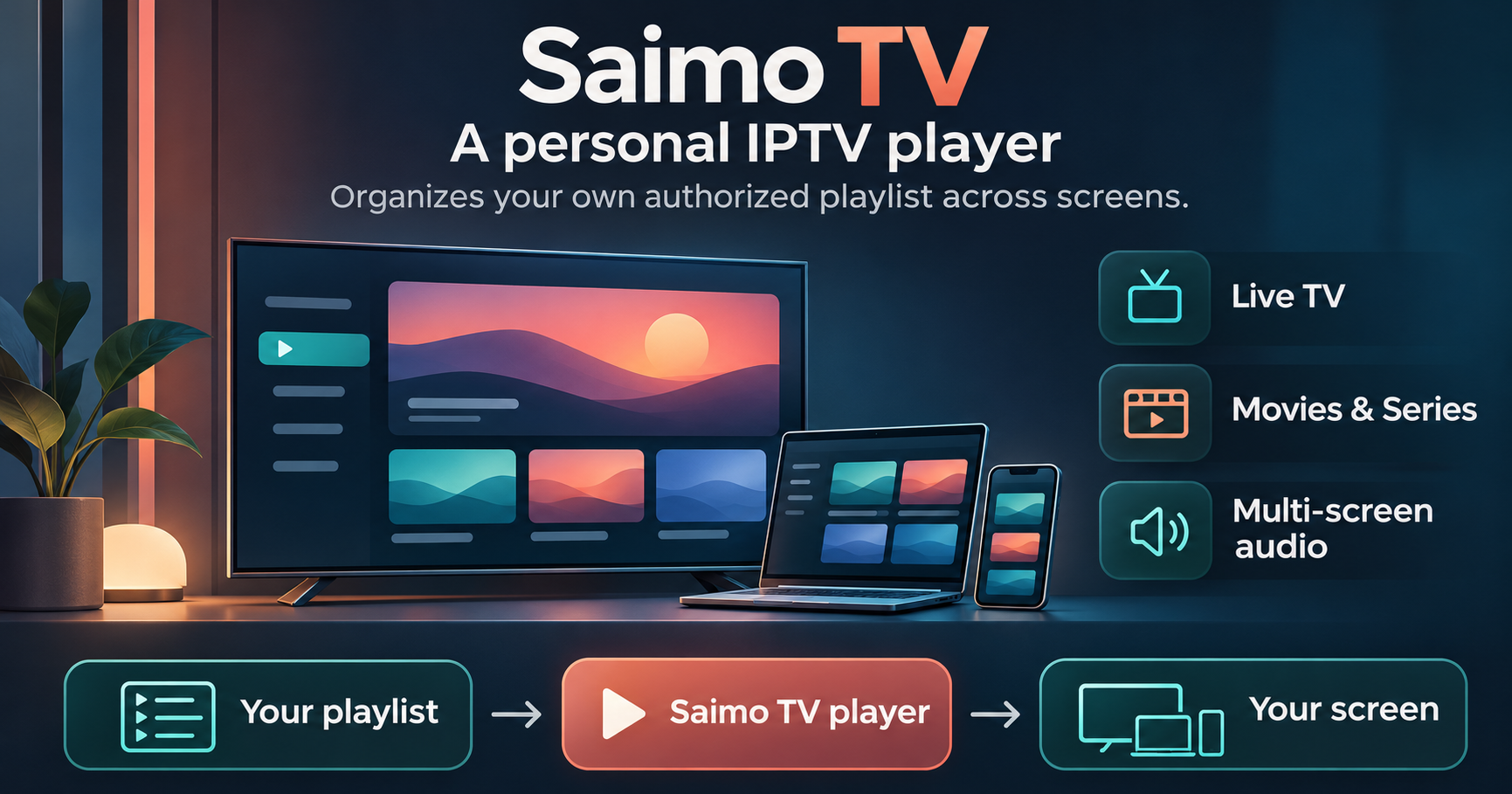
Saimo TV organizes a playlist you already have into a flexible viewing experience for live channels, movies, series, and radio. It is a player, not a content provider.
Reviewed November 16, 2026
Saimo TV at a glance
- Product type
- Personal IPTV player
- Price
- Free player; provider fees may apply
- Setup
- Your authorized M3U playlist or provider login
- Content included
- None; you add your own source
What Saimo TV does—and what it does not
Saimo TV is a personal media player for people who already have access to a playlist or television provider. Add an M3U link or file, or enter the server and account details supplied by your provider. The app then organizes the channels and on-demand items available through that source.
The distinction matters: Saimo TV does not bundle channels, movies, series, or a subscription, and it says it does not host or distribute media. Your access still depends on a separate source that you are entitled to use. Treat Saimo TV as the playback and organization layer, not as a way to obtain a TV package.
Features that shape the viewing experience
Live TV, search, and a program guide
Channels can be grouped into sections, searched, and saved as favorites or recent picks. Where guide data is available, the program guide shows what is on now and next, with summaries and progress. Channel numbers, reminders, sleep timers, and an automatic backup source can make a remote-controlled setup easier to use. Guide quality and backup behavior depend on the source and device.
Movies and series with useful playback controls
The on-demand area organizes movies and episodes with details such as synopsis, cast, rating, and seasons when the source provides that information. Saimo TV describes continue-watching, automatic next-episode playback, subtitle and audio selection, and one-touch intro or recap skipping. Mobile users can also save some movies or episodes for offline viewing. Availability can vary by platform and by the metadata in your playlist.
Multi-screen viewing and Saimo Connect
On supported devices, multi-screen mode places two channels side by side and lets you choose which one has sound. Saimo Connect pairs devices on your home network: a phone can act as the TV remote, send text to the television, or receive TV audio in sync with the picture. Bluetooth delay controls help tune headphone playback. These features are platform-specific, so confirm support for the device you plan to use.
How to set up Saimo TV
- 1
Start with a source you are allowed to use
Get an M3U link or file from a legitimate provider, or use the server address, username, and password your provider gave you. Saimo TV does not supply those details or a content catalog.
- 2
Add the playlist in the player
Choose the matching playlist or provider-login option and enter only the information required by that source. The app separates available live channels, films, series, and radio into browsable sections.
- 3
Organize, then choose a screen
Set favorites and parental controls, check subtitles and audio options, and explore the guide. If your devices support Saimo Connect, pair them on the same home network before using the phone as a remote or audio companion.
Who may find Saimo TV useful?
One familiar player for a multi-device home
If you use a TV, laptop, and phone with the same authorized source, Saimo TV aims to keep navigation and saved items in one place. It supports a wide mix of screens, including Android TV and TV boxes, Samsung and LG TVs, Roku, Android phones and tablets, desktop operating systems, and web browsers. The exact feature set differs by platform.
A shared screen for live events
Households that want a second live view can use multi-screen mode on compatible devices, such as a television or computer. One person can follow a match while another channel remains visible, then choose which picture plays through the room speakers. It is not a substitute for a provider that supplies the streams.
Private listening and mobile viewing
Saimo Connect can move TV audio to a phone for listening through headphones, which is useful when other people are asleep. On mobile, supported downloads can help with offline viewing during travel. Both options depend on device compatibility and the rights and playback rules of your source.
Example: a practical living-room setup
Imagine a household with a supported TV box, a phone, and a playlist from a provider it is permitted to use. The viewer adds that source, groups favorite channels, and checks whether guide data appears. During a game, they can enable two-screen viewing if the TV box supports it, keep the match in the main picture, and choose that screen for room audio.
If someone wants to listen privately, they can pair Saimo Connect over the home network and route the TV audio to the phone. A quick sync adjustment can help with Bluetooth headphones. Before relying on this setup, check the exact device support and the provider’s terms; a feature shown in the product overview may not be available on every screen.
Privacy, content rights, and limits to check
The product describes itself as account-free and ad-free, with favorites, watch progress, parental settings, and playlists stored on the user’s device. Saimo Connect is described as working within the home network without a Saimo cloud account. Playback still connects to the server behind your chosen playlist, so that provider may have its own data practices and requirements.
Saimo TV also states that it does not host or provide channels, movies, or series. Use only sources and media you have permission to access. The public product page is currently in Brazilian Portuguese; the available device-specific controls and any English-language interface should be checked on the intended platform. Native iPhone and iPad support is listed as upcoming, while browser use is described as an interim option.
Saimo TV is a media player. It does not provide programming; use only playlists and media you are authorized to access.
Saimo TV FAQ
Does Saimo TV include channels, movies, or a subscription?
No. Saimo TV is a player and organizer. You add your own playlist or provider login, and you are responsible for having the right to use that source. Any separate provider fee is outside the player.
What do I need before setting up Saimo TV?
You need an M3U link or file, or the server and account details required by your provider. The player does not generate a playlist or grant access to channels.
Is Saimo TV free to use?
The product describes the player as free, with no account or ads. A playlist or provider subscription may have its own price, and optional project support is separate from using the app.
Which devices support Saimo TV?
The product lists Android TV and TV boxes, Samsung and LG TVs, Roku, Android phones and tablets, Mac, Windows, Linux, browsers, and Android-based VR headsets. Features differ across devices. Native iPhone and iPad support is listed as upcoming; browser access is the interim option described for those devices.
Where does Saimo TV store my playlist and viewing data?
The product says playlists, favorites, and watch progress stay on your device, while Saimo Connect works over your home network. To play a stream, the app connects to the server for the playlist you added, so review that provider’s privacy and access terms too.